
The integrations your operation actually runs on.
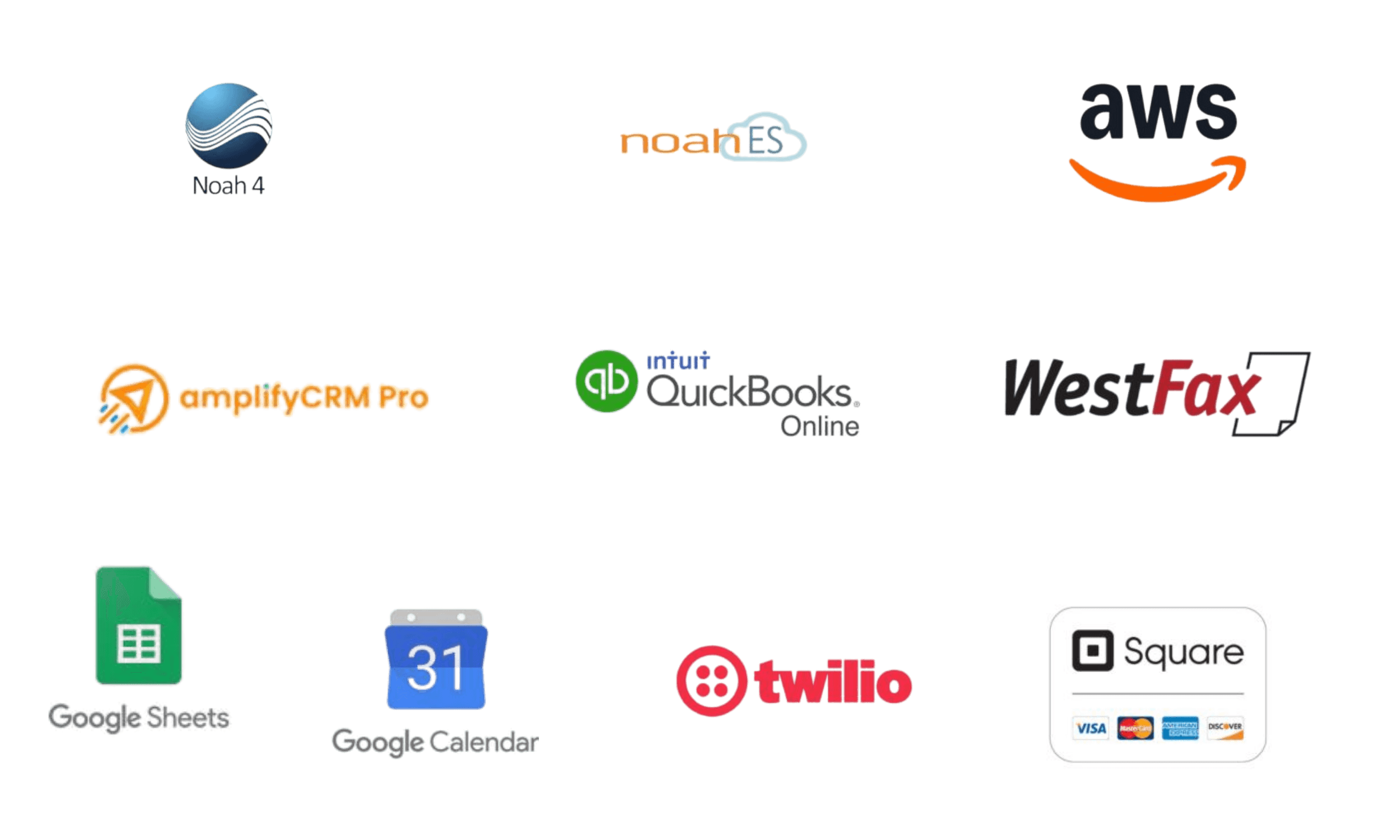
Noah and Noah ES. QuickBooks Online. Google Calendar, Google Sheets, and Zoom. Integrated Conversations: phone calls, texts, and email in the patient file. A way to connect anything else later. Built for the work, not for the logo wall.
Why this page is short.
Most practice management software shows you a logo wall. Sixty partner logos in a carousel, each one suggesting a connection that turns out to be one-way, overnight, or two years out of date. When the front desk actually tries to use it, the data doesn't move where it needs to.
amplifyOMS takes the opposite approach. Fewer integrations on this page. Each one does the work. Each one gets set up during onboarding to match how your practice operates.
Your clinical software, connected to your operations.
Two clinical integrations cover the audiology software most practices already run.
Noah Sync connects amplifyOMS to the legacy Noah system most practices still use for hearing aid fittings. The audiologist working in Noah and the front desk working in amplifyOMS see the same patient. The patient file stays consistent across the clinical side and the operational side.
Noah ES connects to the cloud version of Noah from HIMSA. Same depth as Noah Sync. Same patient consistency.
Most audiology software vendors integrate with one or the other. amplifyOMS works with both, because some practices still run legacy Noah on a server in the back office, some have moved to Noah ES, and some multi-location practices have a mix across clinics. Whichever version your clinical team is on, amplifyOMS works with it.
Available on Professional and above.
The books and the financing path.
QuickBooks Online runs live with amplifyOMS. Bills, drafts, audit entries, manual entries: reconciled in real time. When you close out the month, your QuickBooks picture matches your amplifyOMS picture, and the audit reports surface any gaps before they turn into quarter-end fire drills.
Available on Professional and above.
For financing, the patient file includes a payment portal link you point at whichever financing partner your practice uses. CareCredit, Synchrony, Wells Fargo, Allegro, a regional alternative: configure the link once during setup, and your staff starts financing applications from inside the patient file instead of switching to a separate website.
Available on every tier.
The everyday tools your team already uses.
Three productivity integrations cover the everyday tools most practices already run.
Google Calendar syncs both ways. Appointments scheduled in amplifyOMS show up on Google Calendar. Schedule changes in Google Calendar show up in amplifyOMS. The provider checking their phone sees the same schedule as the front desk.
Google Sheets connects for custom analysis, board reporting, or anything an external accountant needs in spreadsheet form. The data stays clean on the way out.
Zoom Meetings creates the meeting against the appointment in amplifyOMS. The meeting link flows to the patient through the appointment confirmation. The audiologist opens the meeting from the patient file, not from a separate Zoom window.
Available on all tiers above Startup.
Calls, texts, and email in one place.
Integrated Conversations puts every phone call, text, and email with a patient into a single interface, and logs each one in the patient file. Your front desk stops switching between a phone system, a texting app, and an inbox. When a staff member sends a text or replies to an email, it shows up in the patient file.
Phone and SMS run on Twilio underneath, the standard backbone for business communications.
Available on Premium.
The integrations you can't predict today.
Practices change. The marketing tool you don't need today becomes the one you can't live without next year. The analytics platform your CPA recommends. The custom internal tool your IT person builds. The new financing partner that wasn't around when you signed up.
amplifyOMS can connect to any of these later. When something happens in your practice (a new patient gets added, an appointment gets booked, an invoice gets paid, a fitting gets completed), amplifyOMS can automatically send that update to whatever outside system you want to plug in. Your tech team or vendor sets up the connection from the Administration panel.
You're not locked into the integrations on this page. Whatever software your practice needs to connect to amplifyOMS later, amplifyOMS can connect to it.
Available on all tiers above Startup.
See the integrations running.
The walkthrough is about 25 minutes. We'll look at how Noah connects in your practice, how QuickBooks reconciliation actually runs, which of the other integrations matter for your specific setup, and which tier you need. Real product, not a sales tour.